

First of all make sure that, your Business Email Services is active.
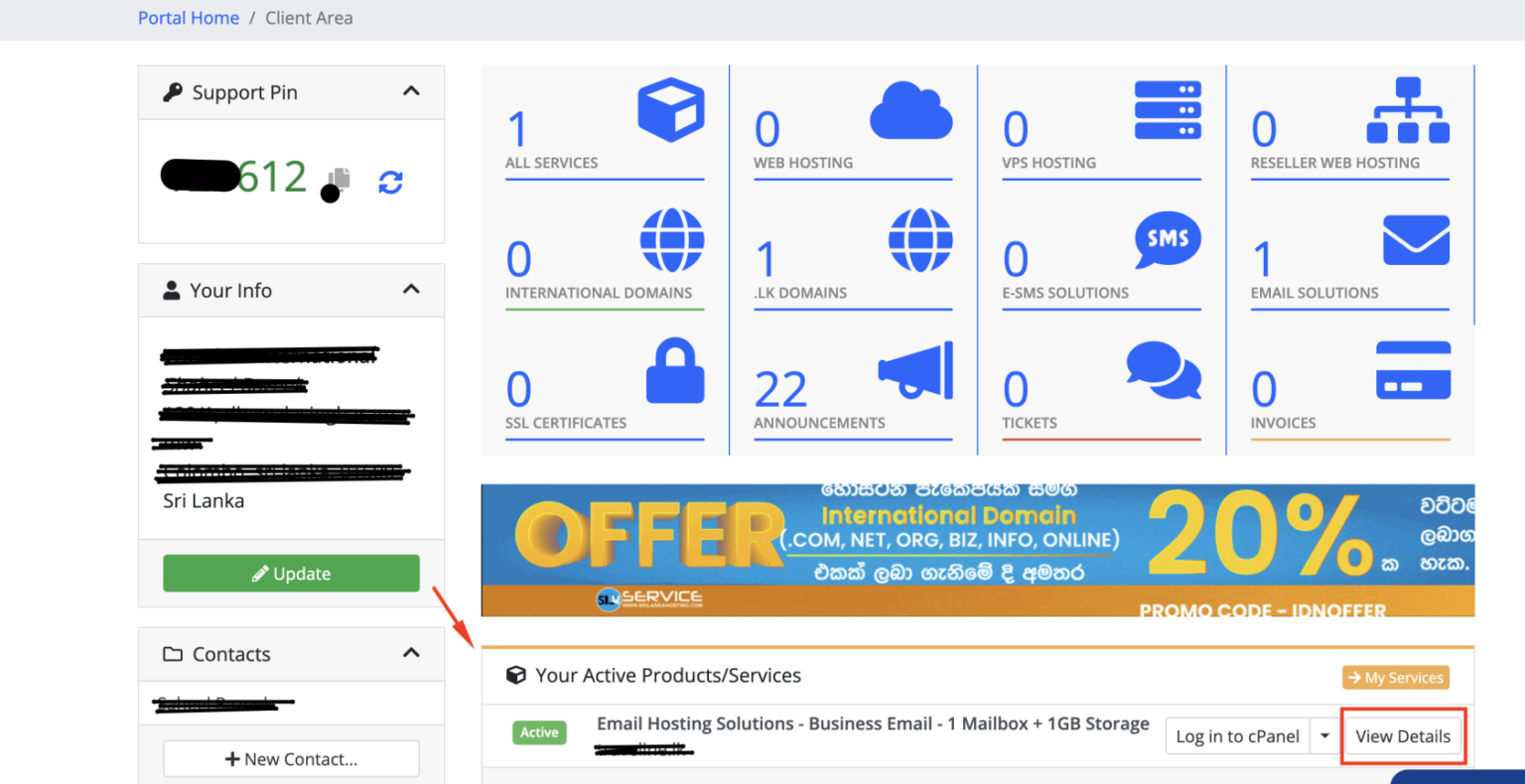
Step 1: Login to your Client Area and Click on View Details of your purchased Business Email Product
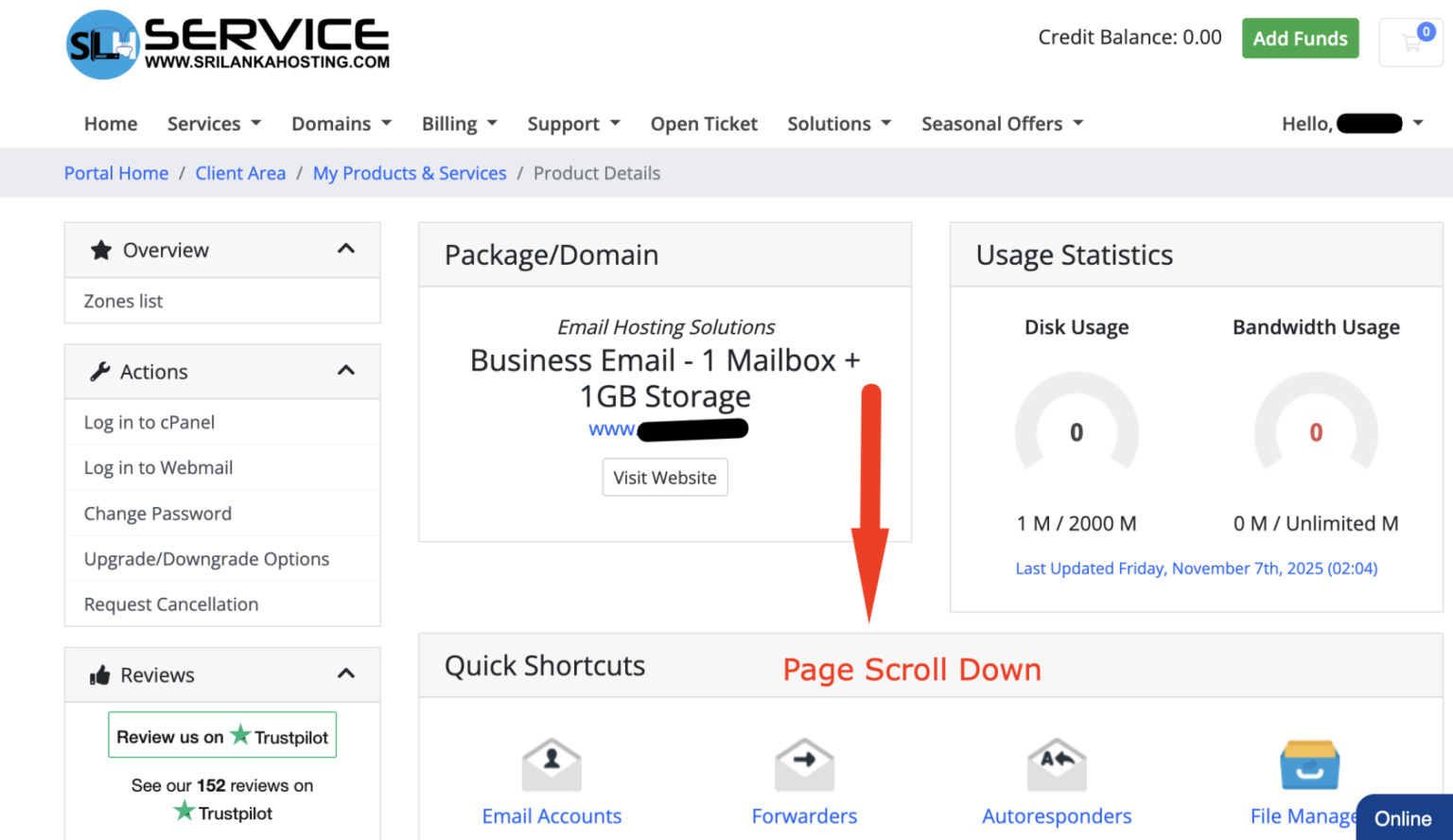
Step 2: Then, Page Scroll down to CloudMail DNS Records as below
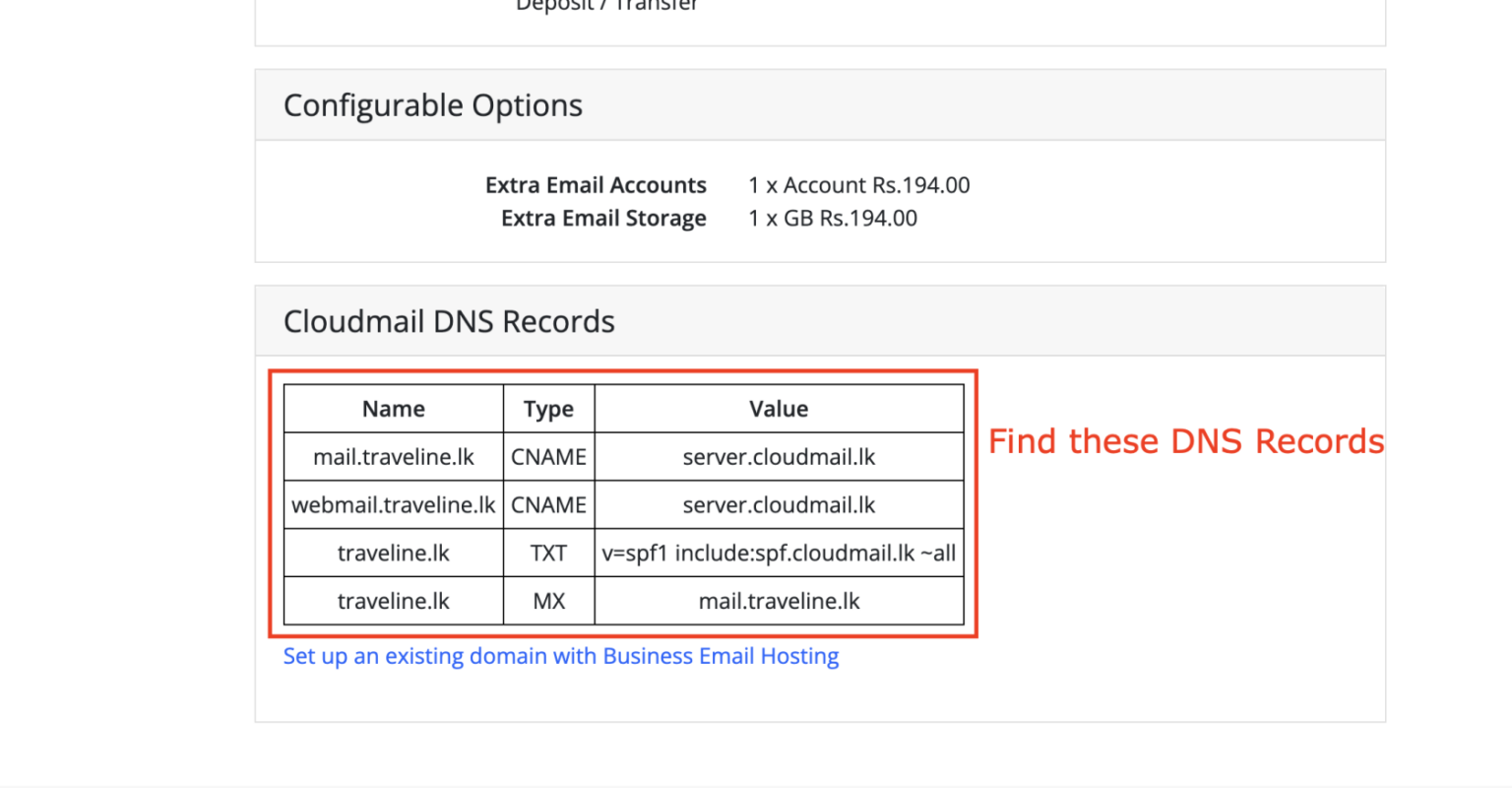
Find the CloudMail DNS Records, and add them to the Domain Name as DNS Resource Records.
- How to add domain name to CloudFlare service and Manage DNS Records : https://www.srilankahosting.lk/knowledgebase-new/how-to-add-domain-name-to-the-cloudflare-and-manage-dns/
- How to update Nameservers of International Domain Name.? https://www.srilankahosting.lk/knowledgebase-new/how-to-update-com-domain-dns-records/
If you have a cPanel or Plesk Hosting Service with us, You can update our Hosting Nameservers to your domain registrar and Manage your DNS through Plesk or cPanel.
- How to Manage DNS records through the cPanel : https://www.srilankahosting.lk/knowledgebase-new/how-to-manage-dns-records-in-cpanel/
- How to Manage DNS records through the Plesk: https://www.srilankahosting.lk/knowledgebase-new/managing-dns-records/
Configure DNS Records :
Example 1 of Add Mail Record
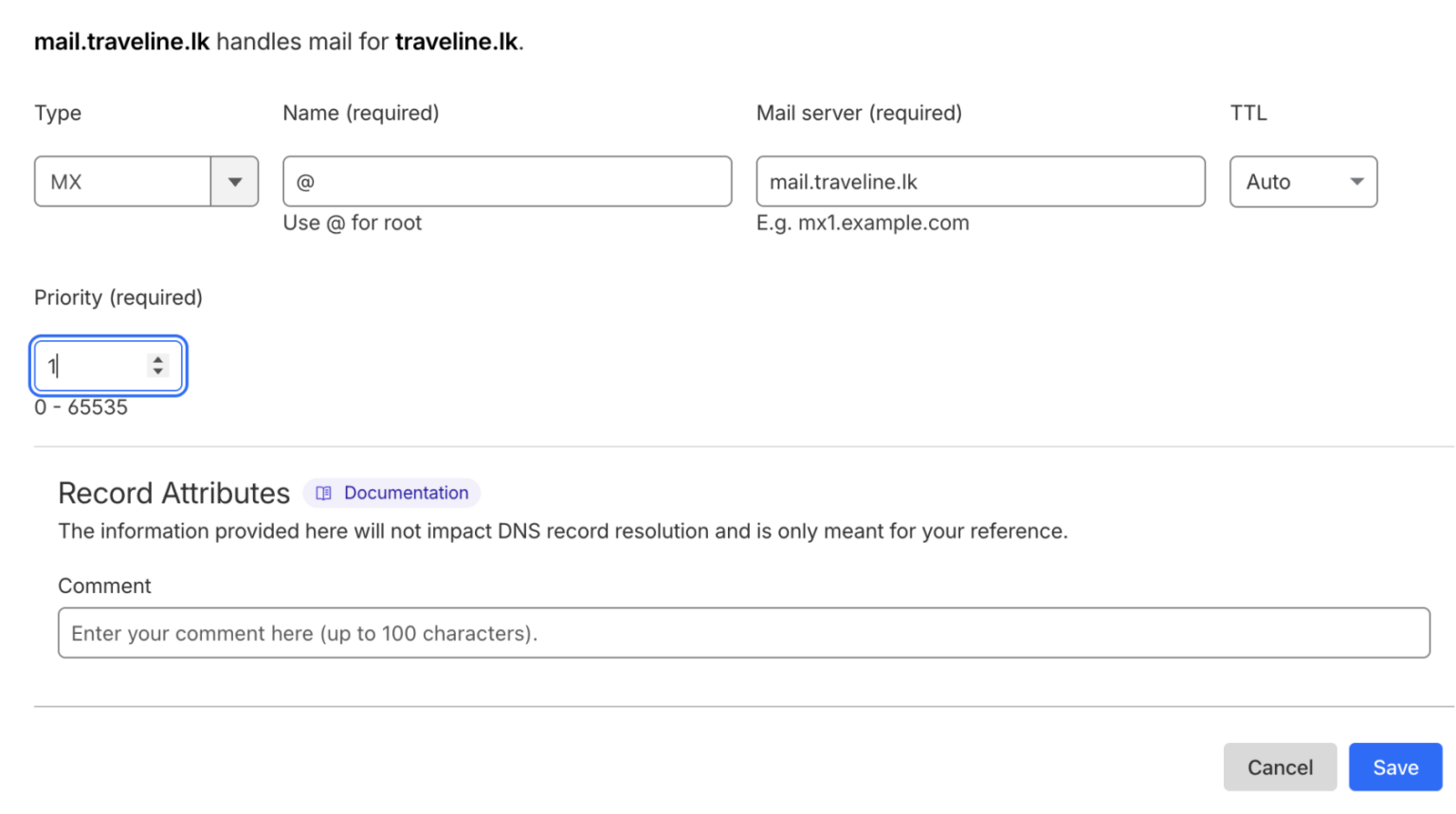
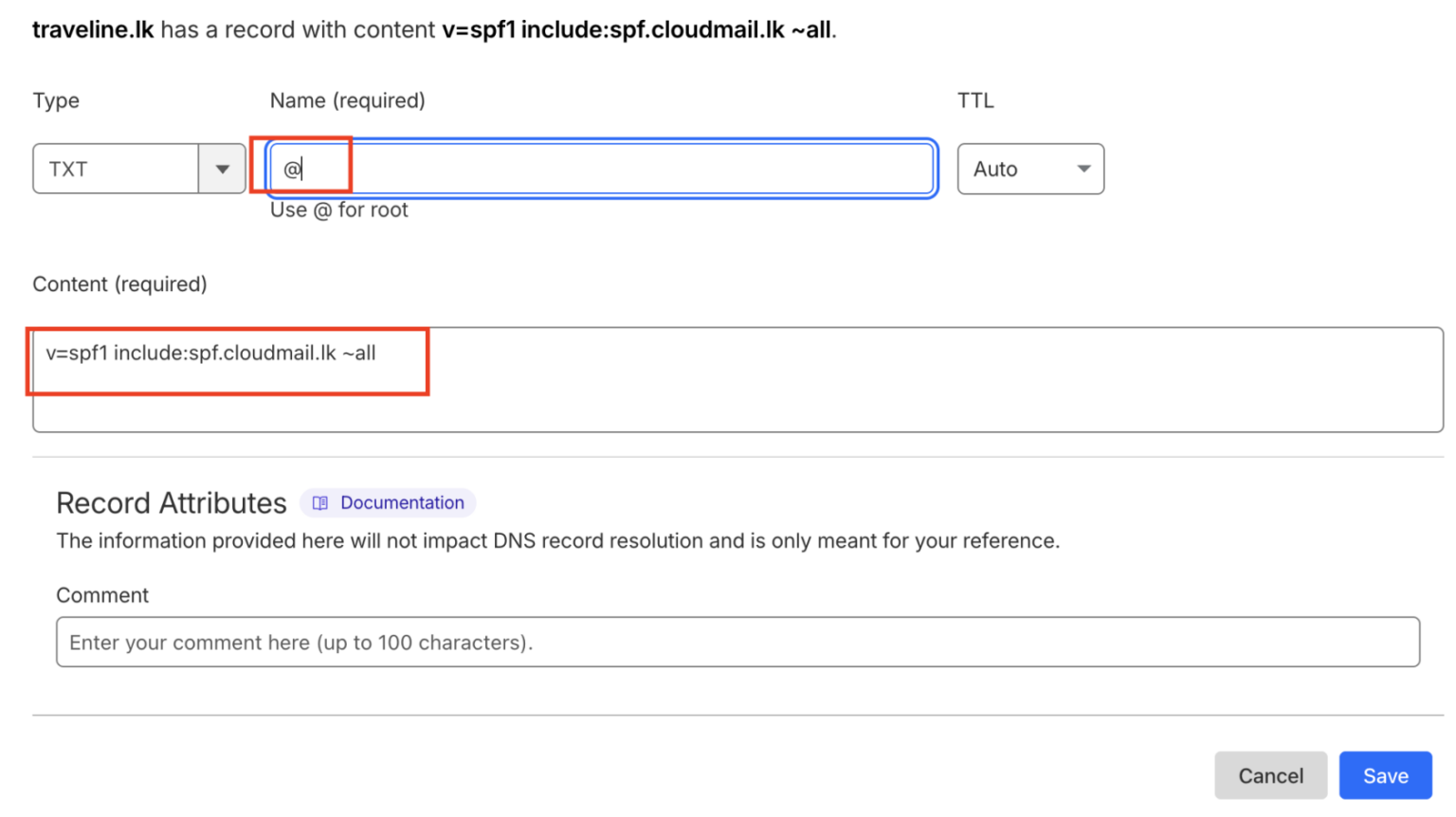
Example 2 of Add SPF Record
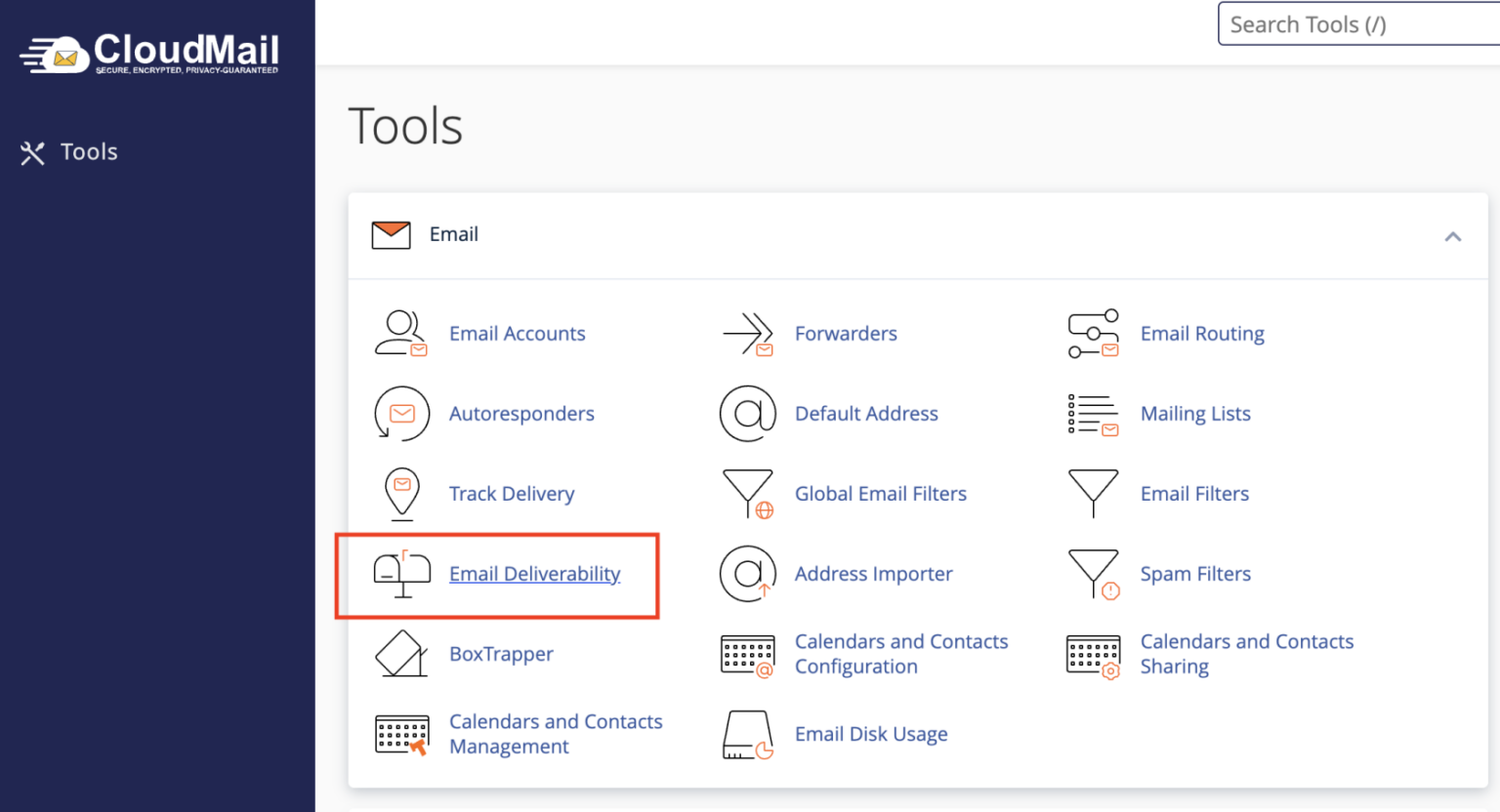
After that login to CloudMail, check the Email Deliverybility thorough the cPanel
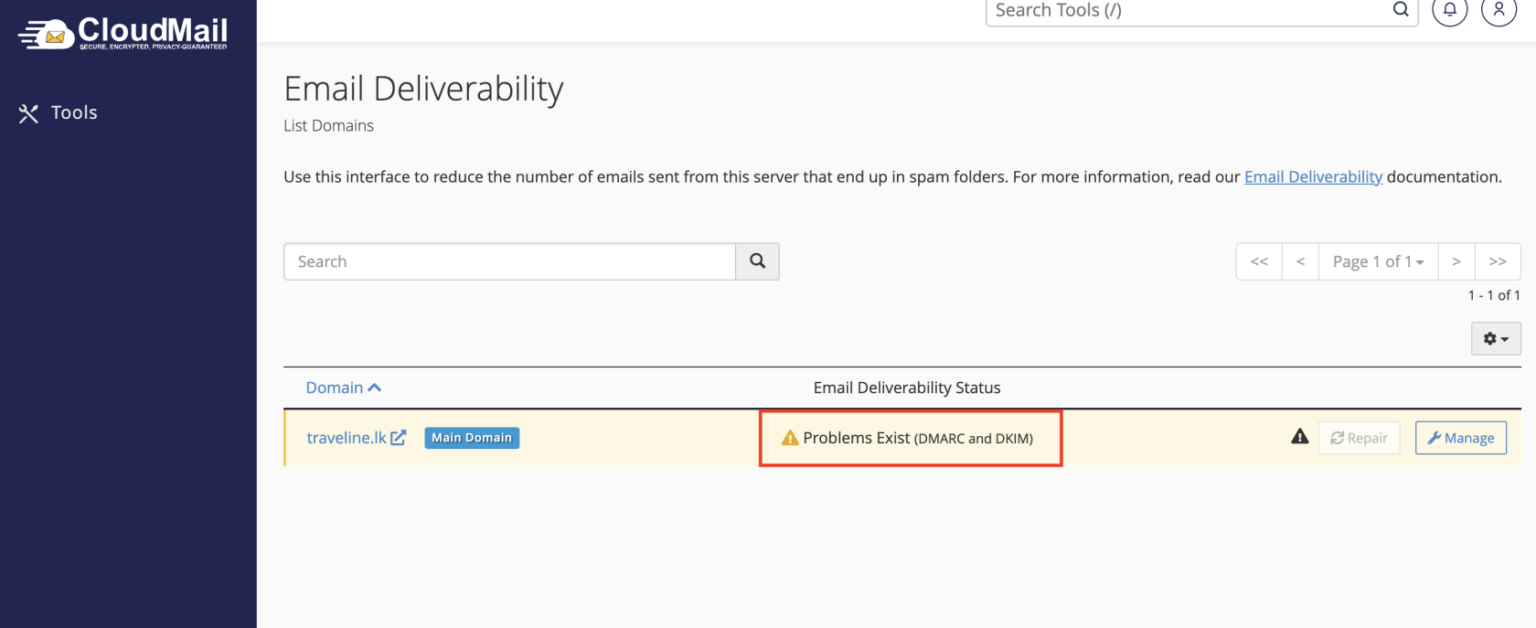
Then click Manage and collect records that problems Exist.
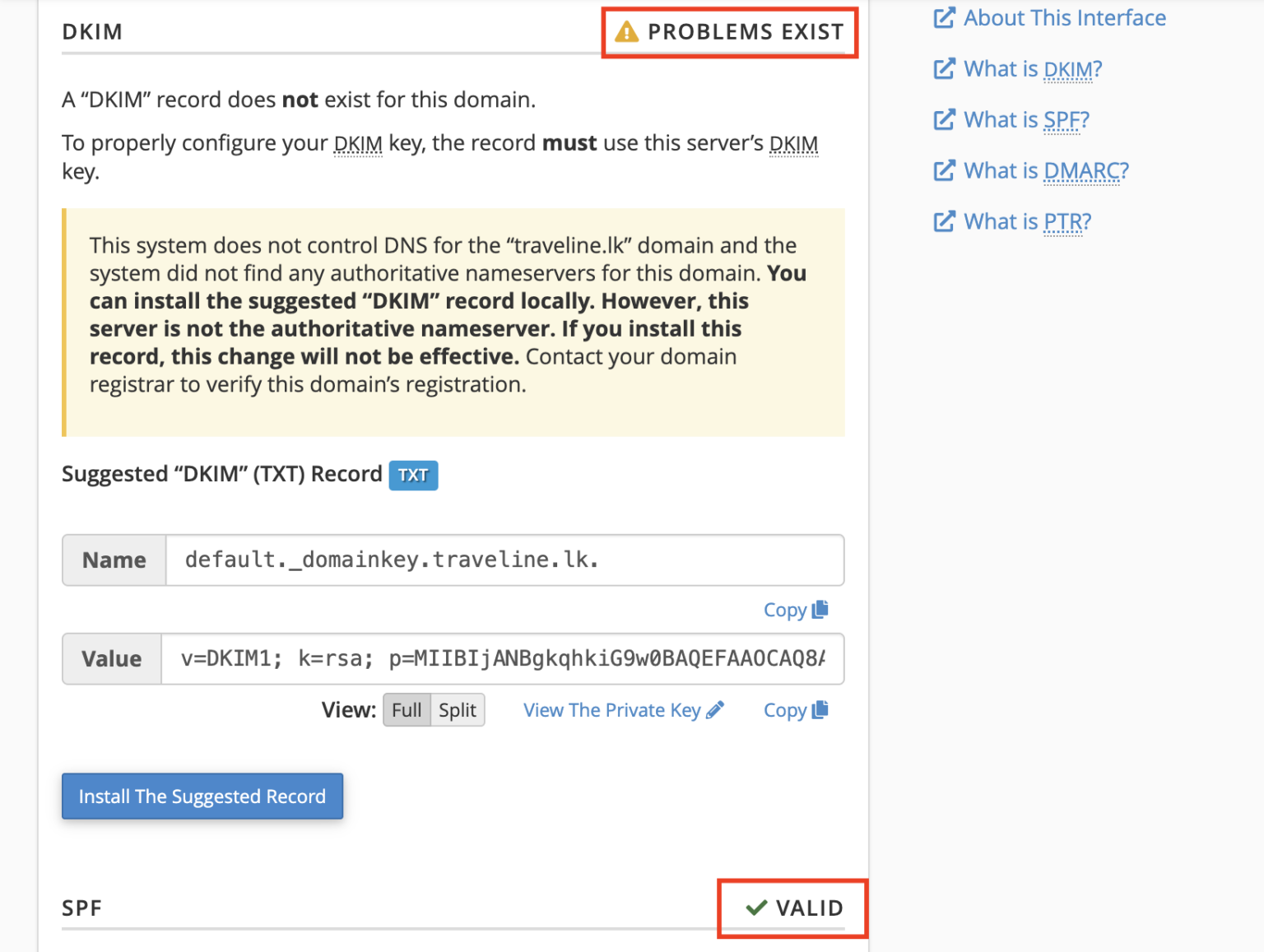
DMARK Settings