

Step 1: Launch Microsoft Outlook on your computer
If outlook launches in the first time, you will see a straightforward window as shown
below(step2).
or
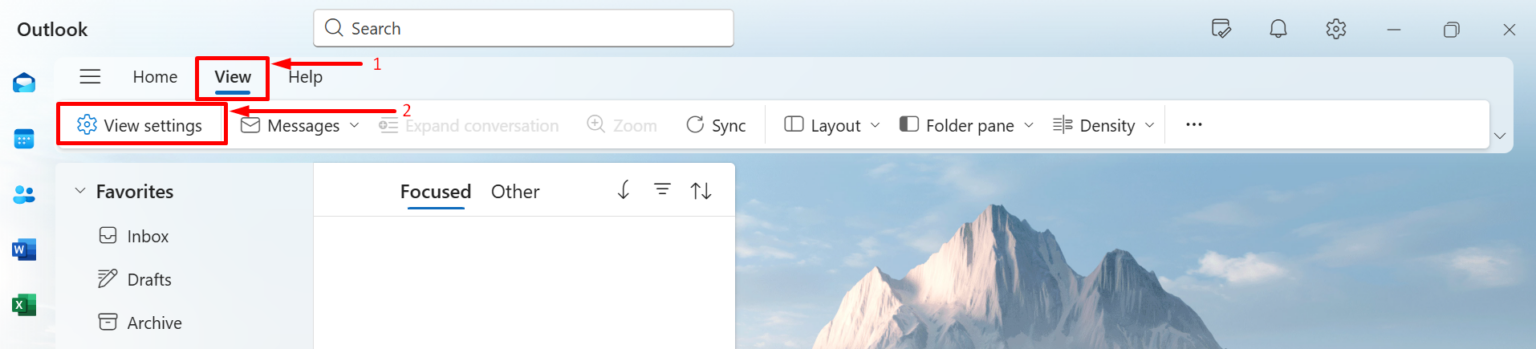
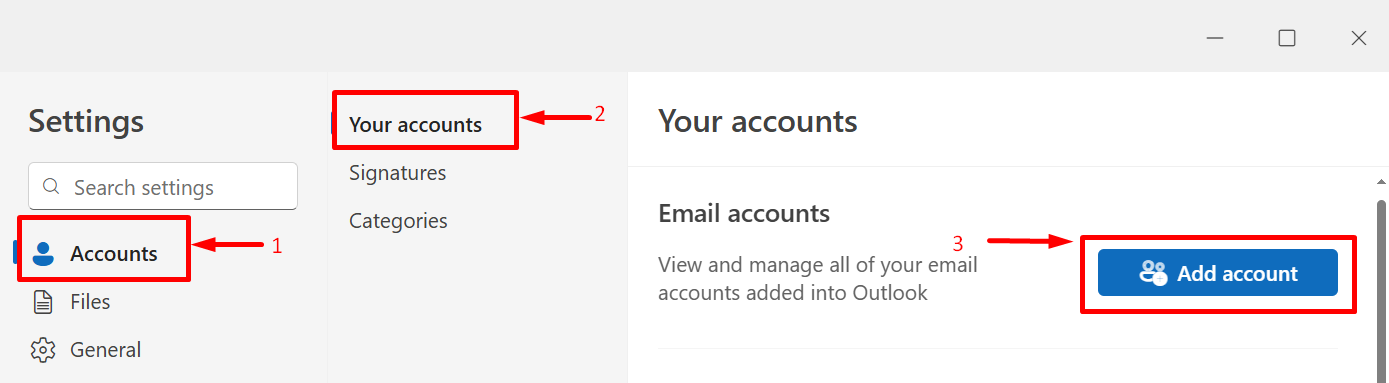
If you’ve already configured a few other email accounts in Outlook, you can click
on View –> View settings –> Accounts –> Add account
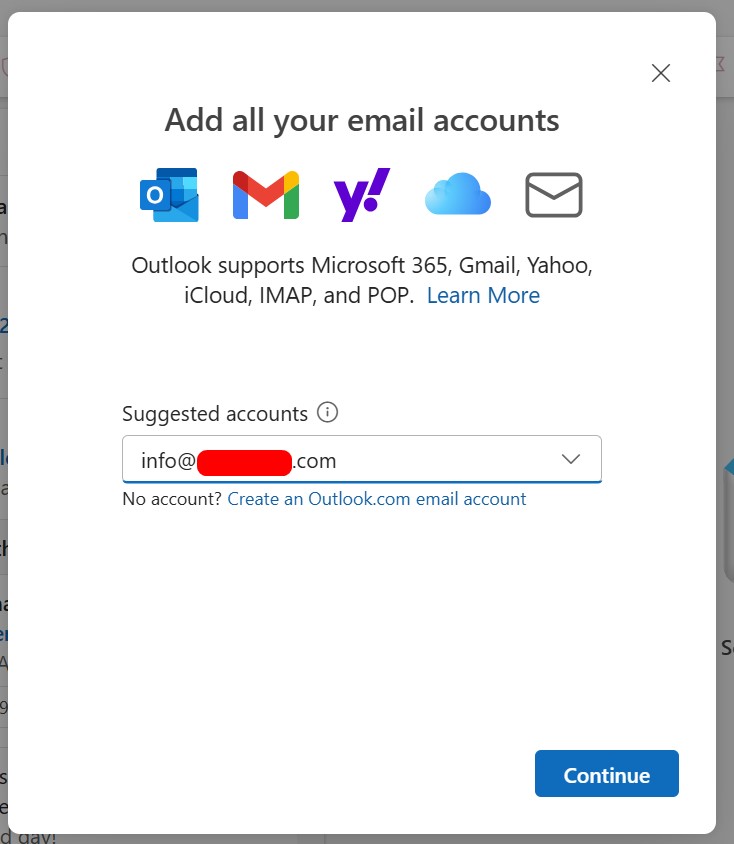
Step 2: In the Add Account window, type your full email and select Continue button
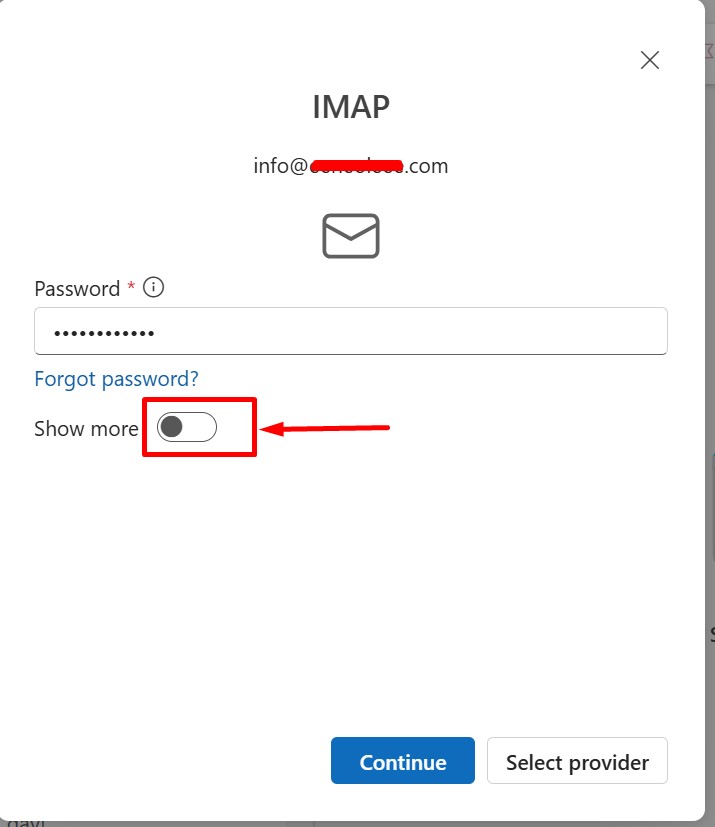
Step 3: Access the IMAP settings page.
- Enter your account password.
- Enable the Show More option to view additional settings.
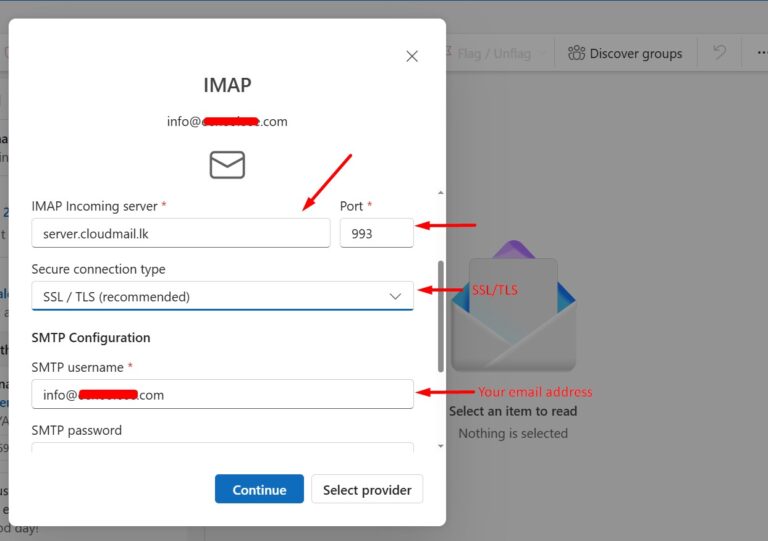
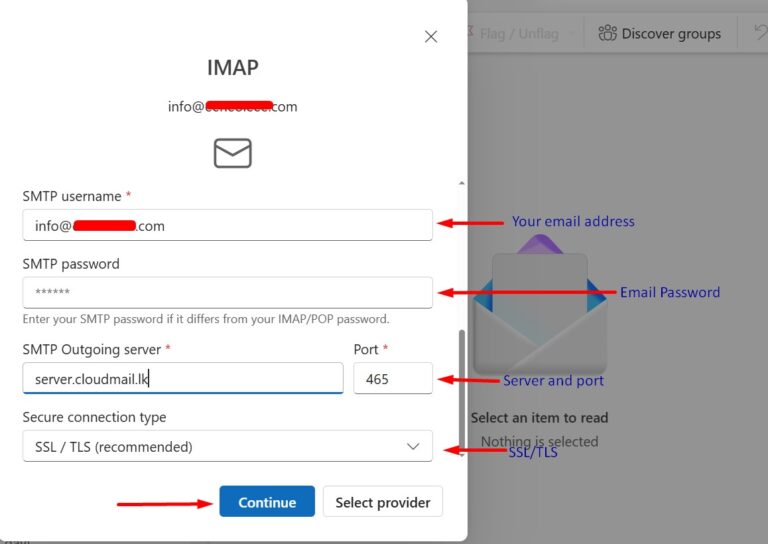
Step 4: Enter your email server IMAP configuration details as displayed in the image below. Once done, click Continue to complete the IMAP configuration.
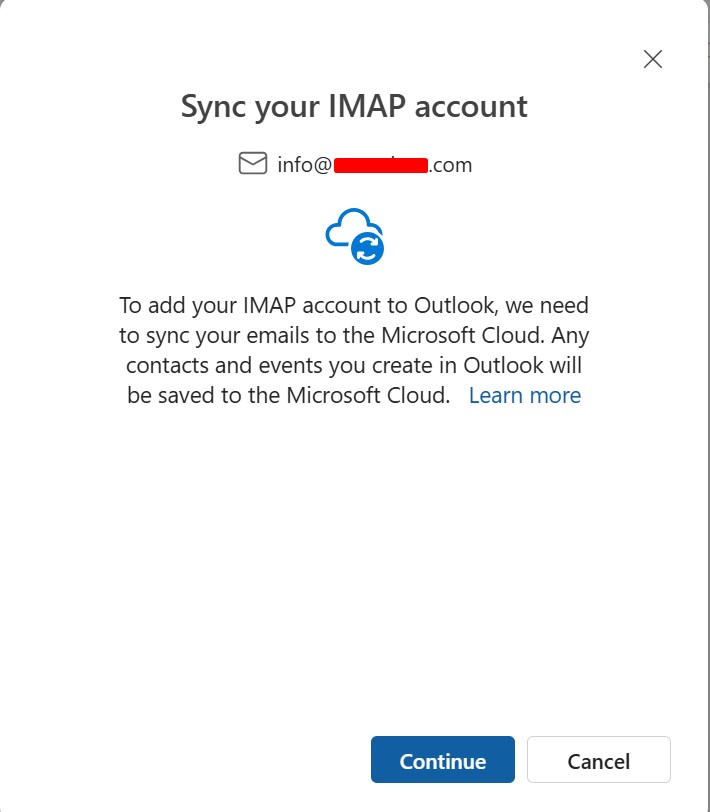
Step 5: Click Continue to begin syncing your email account
Step 6: Once your configuration is complete, you will see the window below. Select Done to finish the setup
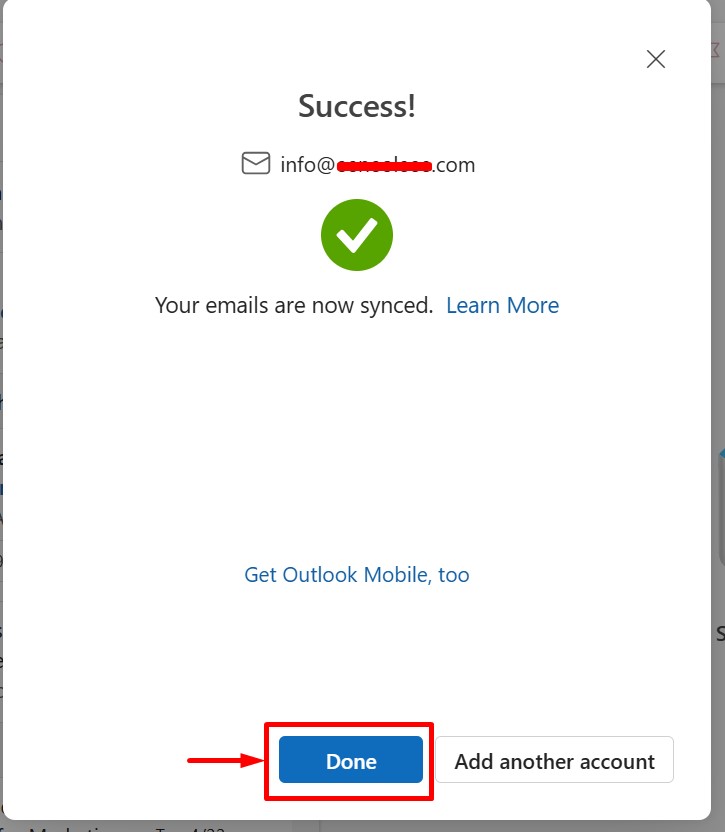
The configuration has been successfully completed. You can now access and use your email account without interruption.