

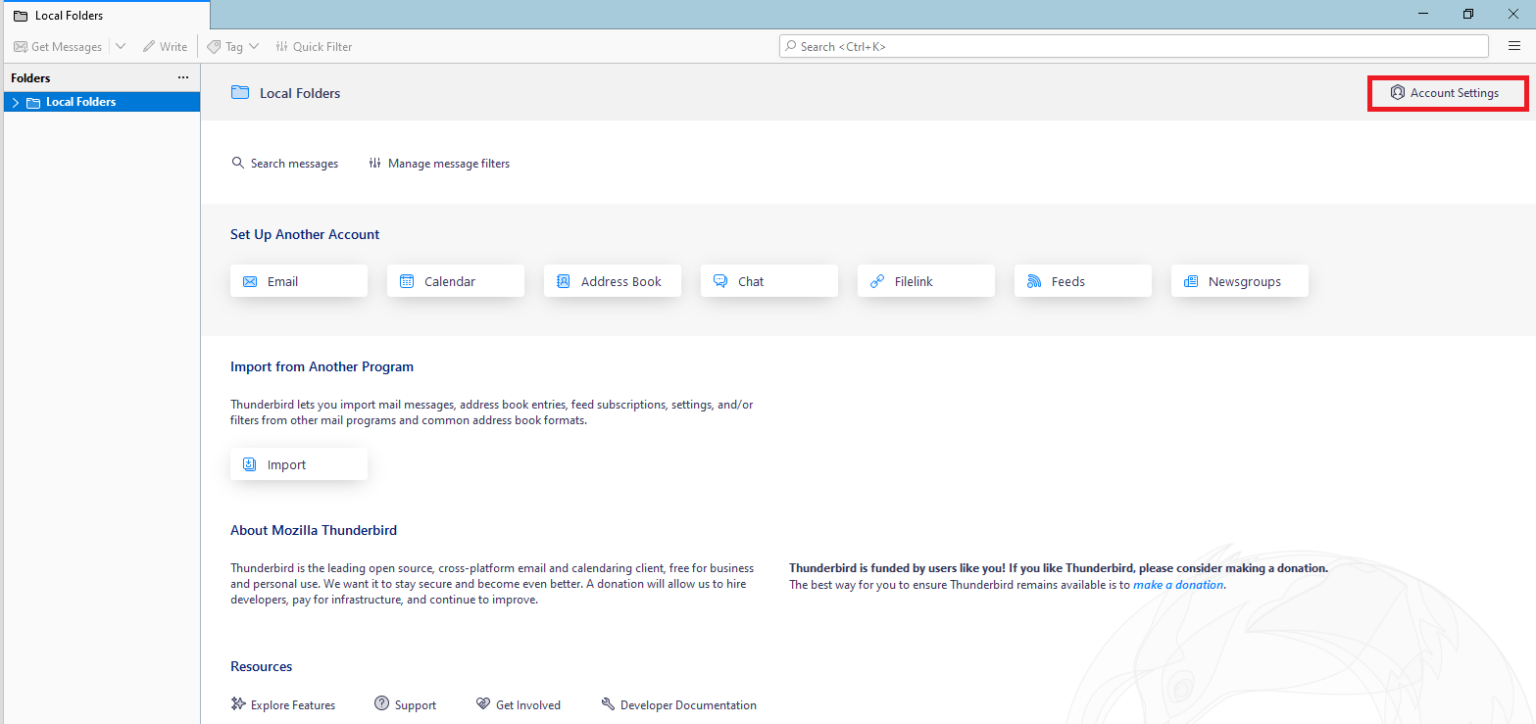
Step 1: Open Thunderbird application and click Account Setting
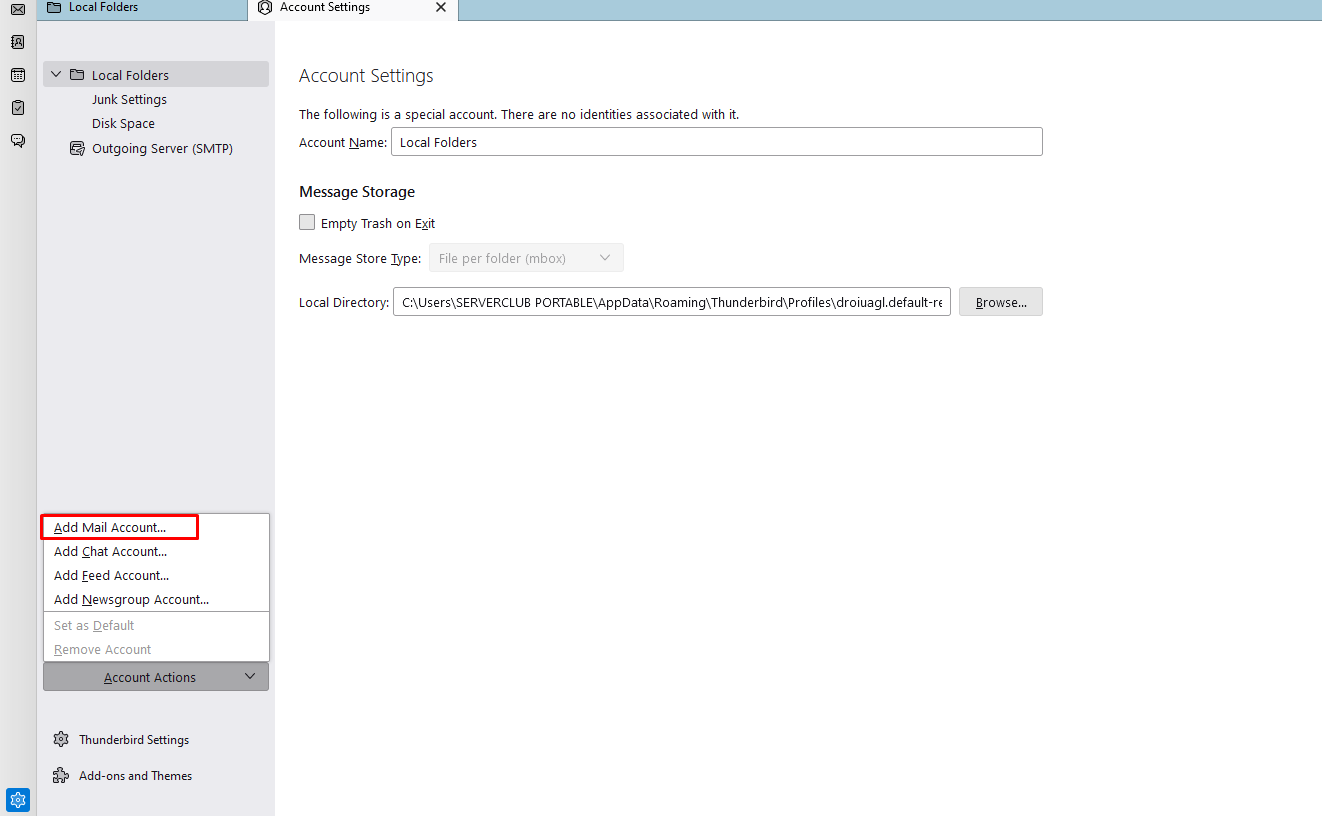
Step 2: Drop down the Account Action section and click Add Mail Account
Step 3: Go to Set UP Your Existing Email Address Page
Step 4: Fill Your Full Name, Email Address, Password sections
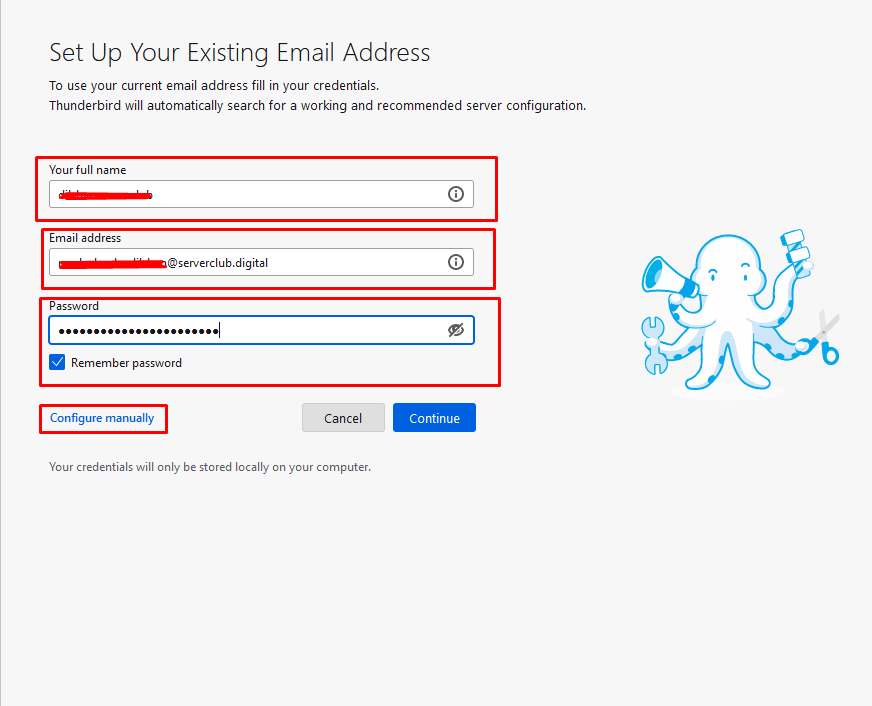
Step 5: After click Configure Manually button and go to Manual Configuration section
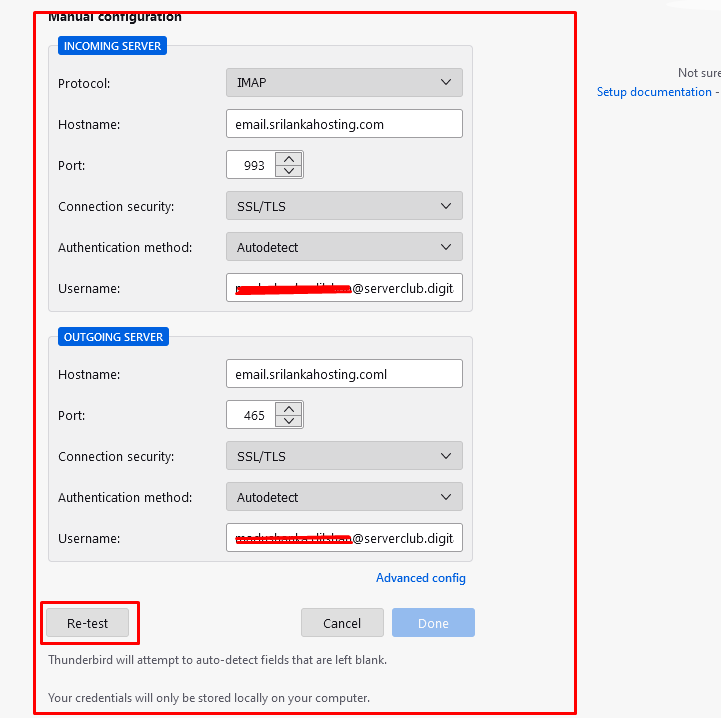
Step 6: Fill the Incoming Server and Out going server sections follow below image
.png)
Step 7: After click Re-test button and checking correct details
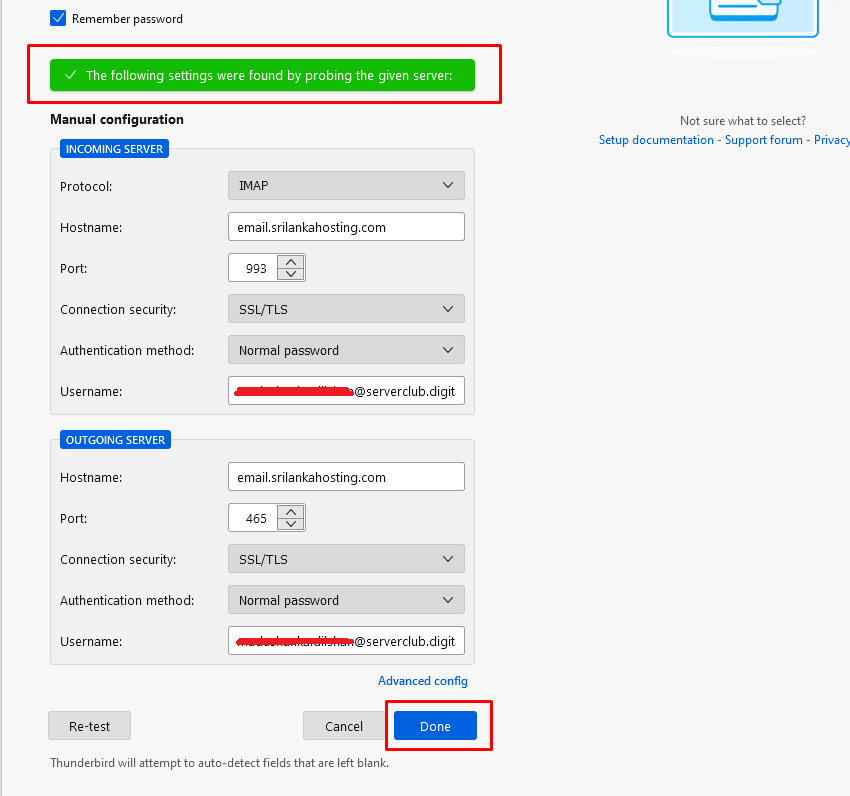
Step 8: After display green color message on the page and next click Done Button.
Step 9: Finally go to Account Successfully Created page and click Finish button.
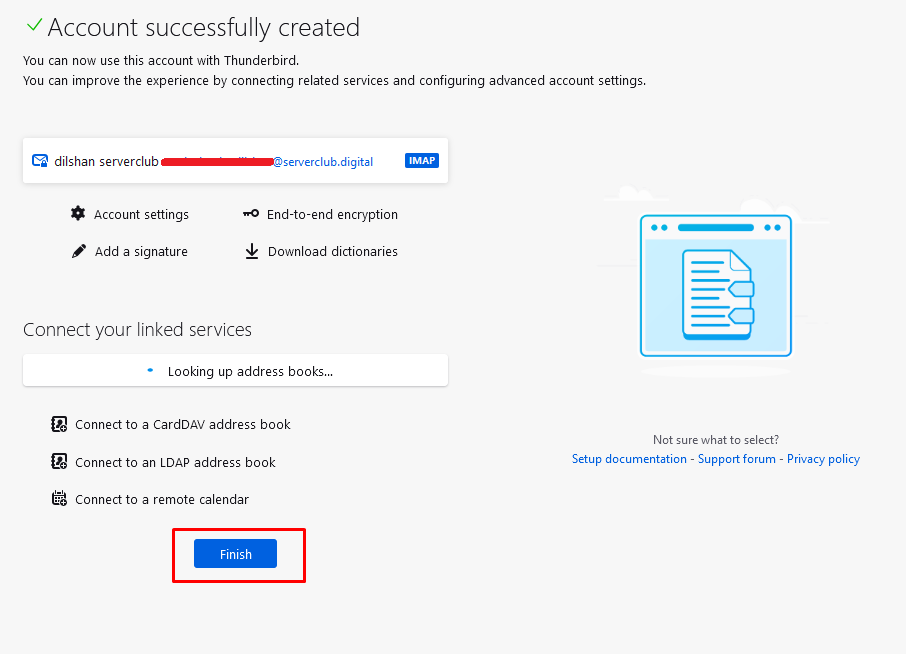
Your Thunderbird Account Successfully Created