
Step 1: Launch Microsoft Outlook on your computer
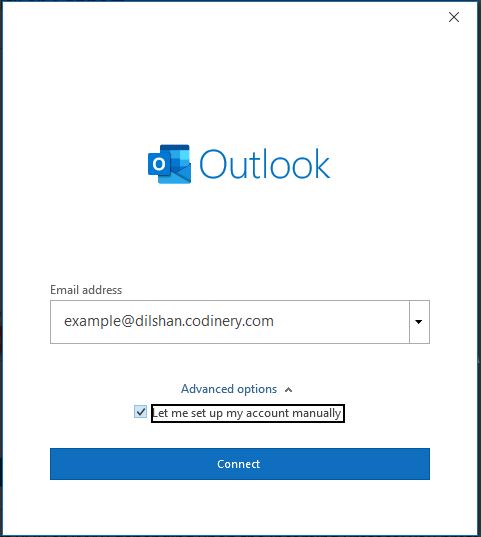
Step 2: If outlook launches in the first time, you will see a straightforward window as shown below. If you’ve already configured a few other email accounts in Outlook, you can click on File Menu > Add Account and to more see the window below
- Enter the email address that created in your cPanel.
- Check and tick the check Box.
- Click Connect to continue.
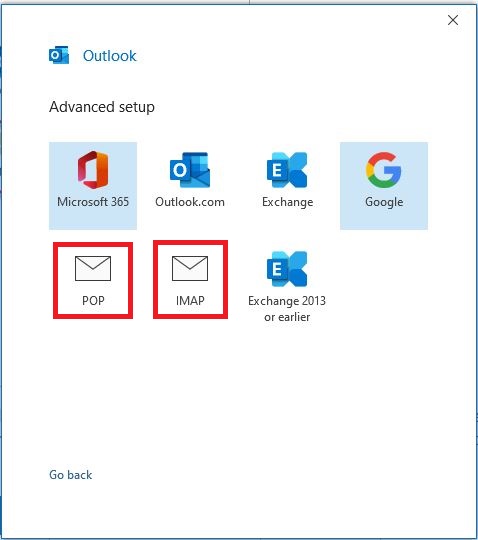
Step 3: Choose POP or IMAP depending on the protocol you prefer
Step 4: Then use mail.yourdomain.com as the server and user port as the below table.(Replace with yourdomain.com with your active Domain name)
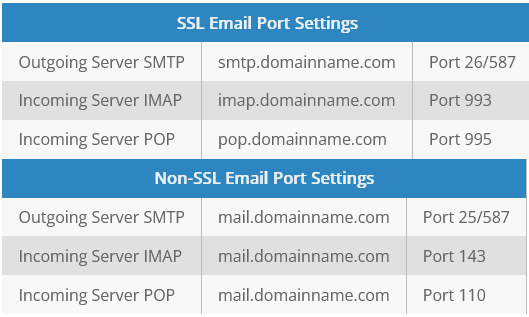
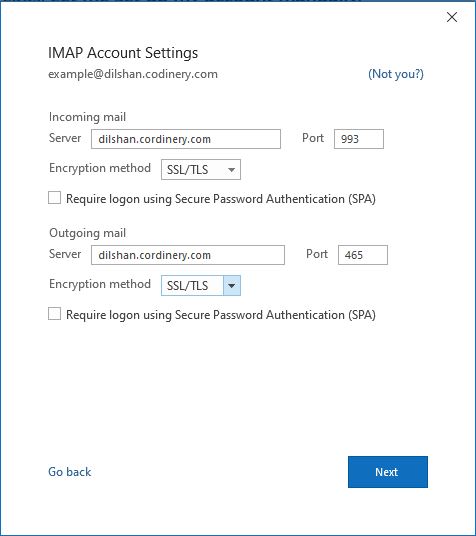
Step 5: Enter the incoming and outgoing mail server and port
- Click the Next button to proceed.
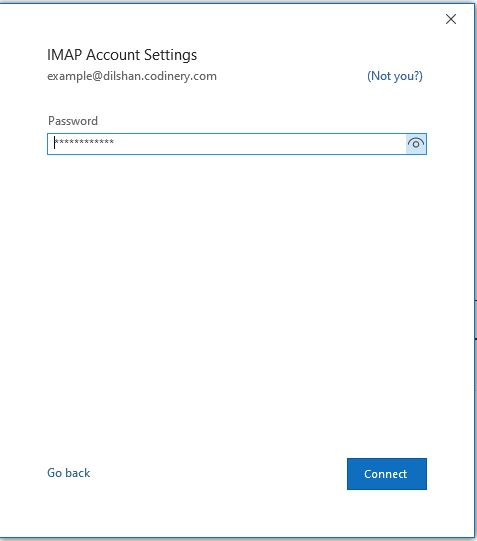
Step 6: Enter the password for your email account
- Click the Connect button to proceed.
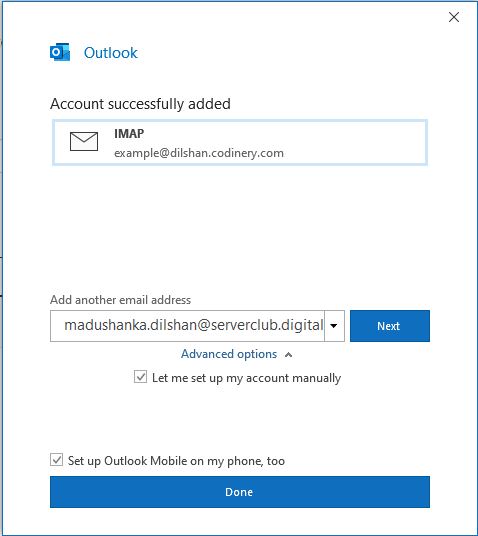
Step 7: Your email account has been configured successfully!
- Click on Done to conclude the process