How to Install and Set Up Google Tag Manager on Your WordPress Website
Jul 30, 2026
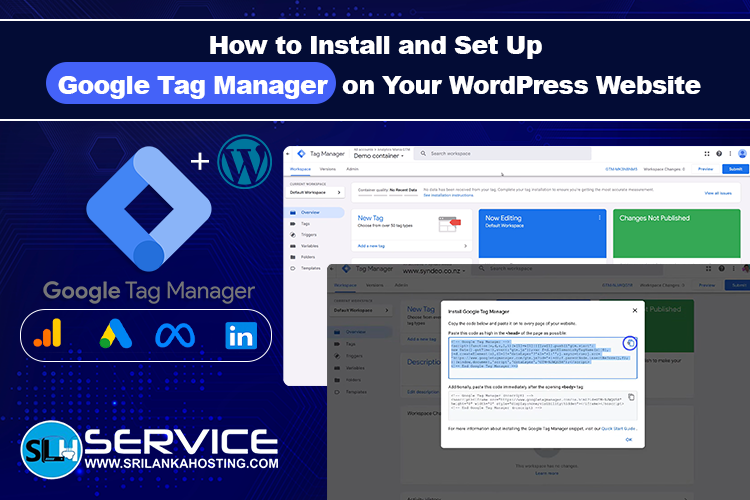
If you want to understand how visitors use your website, Google Tag Manager (GTM) is a great tool. It lets you add tracking codes to your website without editing your website files every time. Whether you run a business website, an online store, or a blog, Google Tag Manager makes it easier to manage your website tracking. In this guide, you'll learn how to install and set up Google Tag Manager on your WordPress website.
What Is Google Tag Manager?
Google Tag Manager is a free tool from Google that helps you manage tracking codes, also called tags, on your website. Instead of adding code manually whenever you want to track something, you can manage everything from one dashboard. With Google Tag Manager, you can easily add tools like:
- Google Analytics
- Google Ads Conversion Tracking
- Meta Pixel
- LinkedIn Insight Tag
- Other marketing and analytics tools
Why Use Google Tag Manager?
Google Tag Manager offers several benefits for website owners.
It helps you:
- Manage tracking codes easily
- Add marketing tools without editing code
- Measure website performance
- Track visitor behaviour
- Improve your digital marketing
It is suitable for businesses of all sizes.
Before You Start
Before installing Google Tag Manager, make sure you have:
- A WordPress website
- A Google account
- Administrator access to your WordPress dashboard
Step 1: Create a Google Tag Manager Account
Visit the Google Tag Manager website and sign in with your Google account. Create a new account by entering:
- Account Name
- Country
- Container Name (usually your website name)
- Platform (Web)
Google will then generate your Tag Manager container.
Step 2: Copy the GTM Code
After creating your container, Google provides two pieces of code. These code snippets must be added to your WordPress website. Keep this page open because you will need the code in the next step.
Step 3: Install Google Tag Manager on WordPress
There are several ways to install Google Tag Manager. The easiest method is by using a WordPress plugin. Many website owners use a trusted Google Tag Manager plugin that allows you to enter your GTM Container ID without editing your website files. You can also add the code manually if you are familiar with WordPress themes. Note: your GTM Container ID (e.g., GTM-XXXXXXX) from the top right header. If you are using a WordPress plugin (recommended), you only need this ID. If you choose to install GTM manually, copy the two HTML code snippets provided.
Step 4: Verify the Installation
After adding the code, publish the changes. Then return to Google Tag Manager and Click the Preview button in GTM. A new window will open for Google Tag Assistant. Enter your website URL and click Connect to verify that your container is firing properly. If everything is working, your container is ready.
Step 5: Publish Your Container
Once you have confirmed that everything is working correctly, click Submit and Publish. Your Google Tag Manager setup is now live.
What Can You Track?
Google Tag Manager can help you track many important website activities, including:
- Page views
- Button clicks
- Contact form submissions
- File downloads
- Online purchases
- Video views
- Scroll tracking
This information helps you understand how visitors use your website.
Connect Google Analytics
Many businesses connect Google Tag Manager with Google Analytics. This allows you to:
- Measure website traffic
- Track visitor behaviour
- Monitor popular pages
- Understand customer journeys
These insights can help improve your website and marketing campaigns.
Tips for Better Website Tracking
To get the best results:
- Test new tags before publishing
- Remove unused tracking codes
- Keep your website updated
- Review your reports regularly
- Use meaningful event names
Good tracking helps you make better business decisions.
Need Help Setting Up GTM & Keeping Your WordPress Site Fast?
At SriLanka Hosting, we provide reliable WordPress Care Plans for businesses. Keep your WordPress website secure, updated, and performing at its best with our WordPress Website Care Plans. Whether you need basic protection or complete website management, our plans include WordPress updates, daily backups, security monitoring, malware protection, expert support, and business email. As your business grows, you can upgrade to plans that include website improvements, SEO maintenance, eCommerce support, dedicated assistance, and unlimited maintenance tasks—giving you peace of mind while you focus on your business.
Final Thoughts
Google Tag Manager is one of the easiest ways to manage website tracking
without constantly editing your website code. It helps you install marketing and analytics tools, track visitor activity,
and improve your website using real data. If your WordPress website is hosted on a reliable hosting platform, setting
up and using Google Tag Manager becomes even easier, helping your business
make smarter marketing decisions.